
AI, IDEs and Salesforce
Everyone's talking about vibe coding Salesforce, but few explain how to set it up. Here's how to connect Cursor to your sandbox and production orgs, pull down your metadata and prove it all works with a first deployment.

Vibe coding in Salesforce through your preferred IDE is the new thing, and has been for a while.
However, how many people are actually doing it? And are the people who know keeping the knowledge to themselves? Yes, they are!
In this post I'll show you how to connect your IDE to Salesforce and start building. As a starting point I'm going to use Cursor, because it's powerful, easy to use and rich in features. It also has a good price point, with various tiers, all of which give you enough to build plenty of cool features and even entire products on Salesforce.
Install the tools
To get started, download Cursor from cursor.com/download.
Then download the Salesforce CLI from developer.salesforce.com/tools/salesforcecli.
Install the CLI following the instructions on the Salesforce website. To check it's worked, open a new terminal and run:
sf --versionYou should get back something like @salesforce/cli/2.x.x win32-x64 node-v22.x.x.
Next, install Cursor.
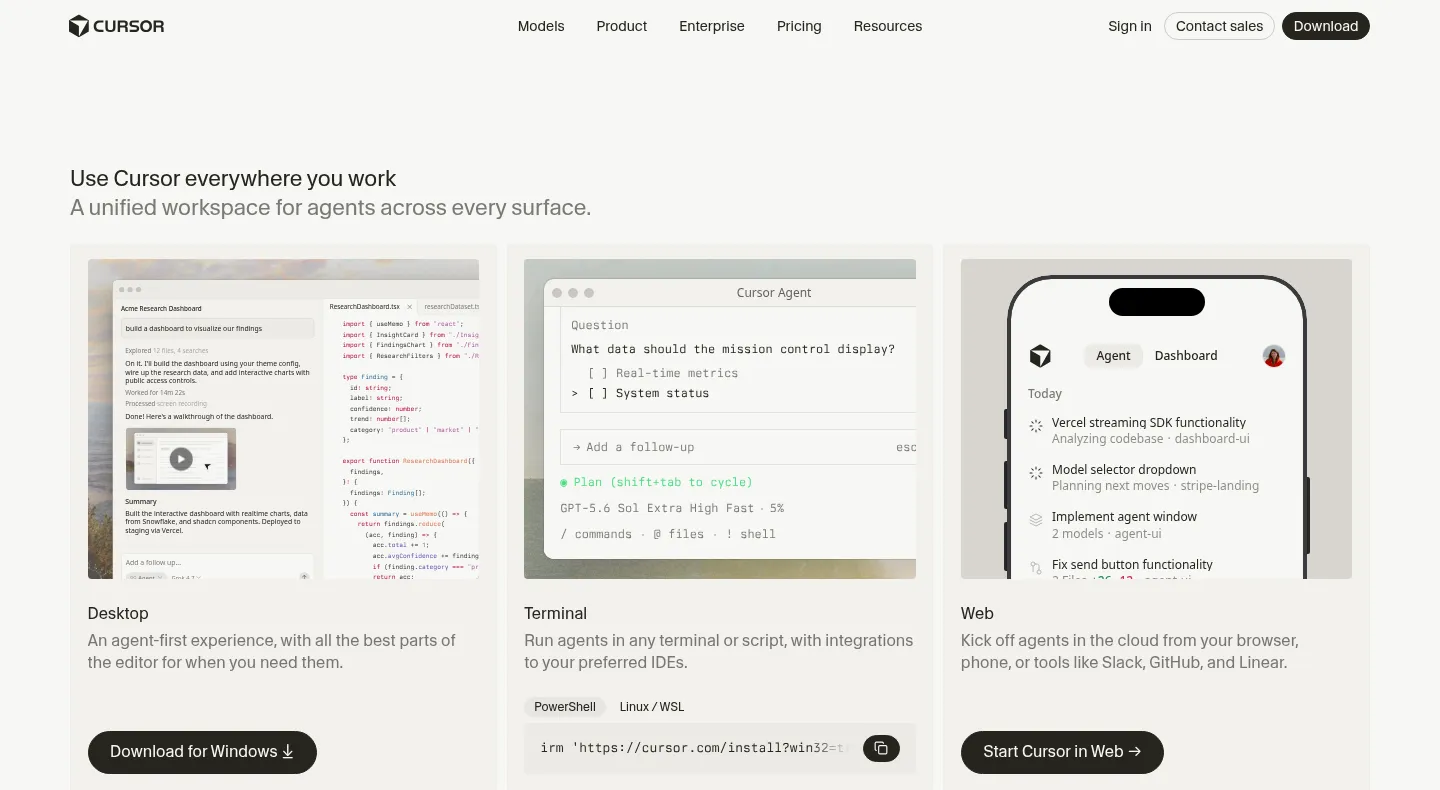
Cursor has two modes: Agent (the Agents Window) and IDE (the editor). For Salesforce use you'll likely use IDE mode almost all the time. The modes are quite similar, so don't worry about this detail too much. You can switch between them at any time with Ctrl+Shift+P and then "Open Agents Window" or "Open IDE".
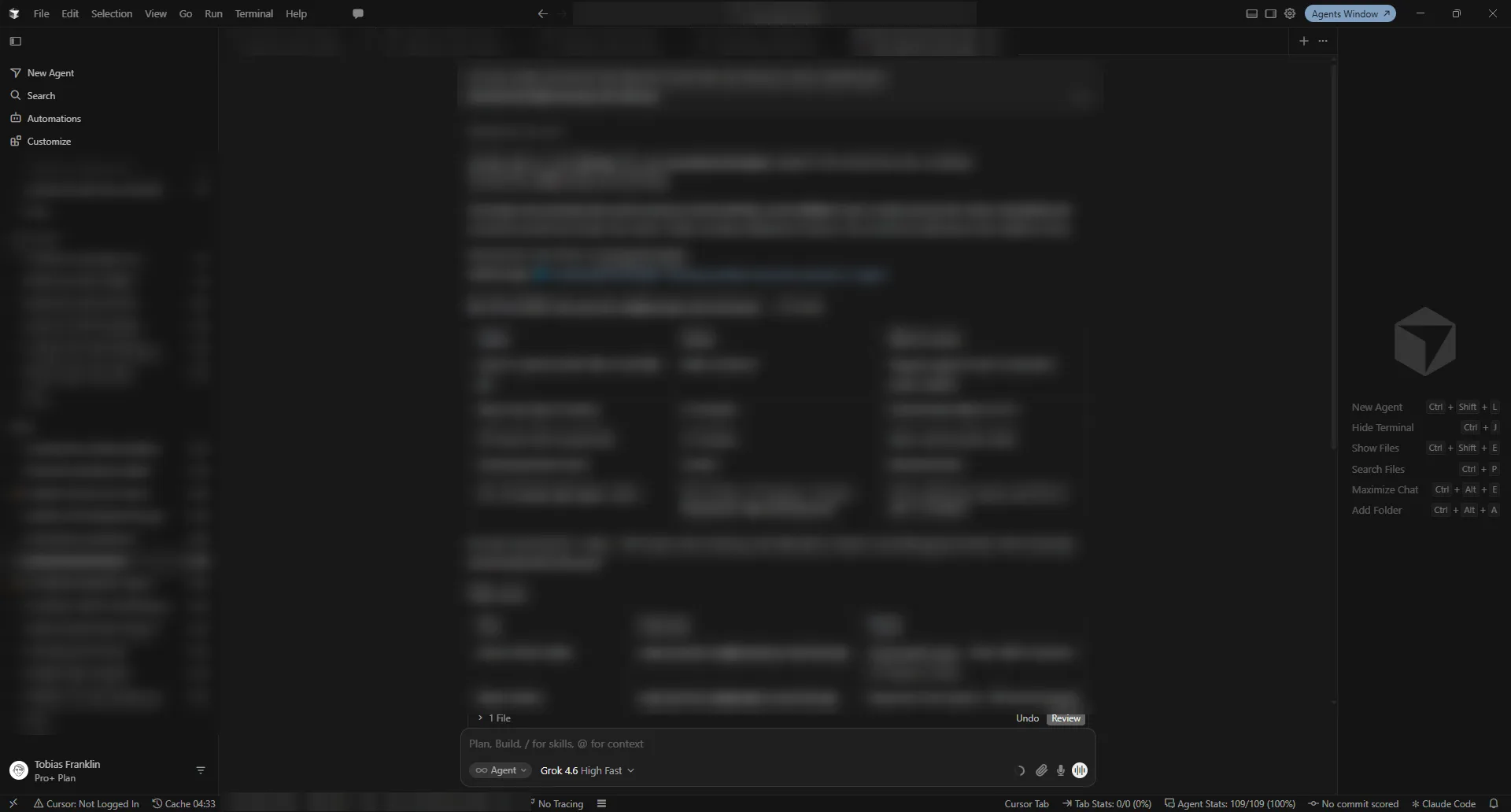
Once you're in the IDE, you need to install some Salesforce extensions. Install the Salesforce Extension Pack, which installs everything you need in one click. Use Ctrl+Shift+X to open Extensions, then search for "Salesforce Extension Pack" and install it.

Some of the extensions (the Apex language support in particular) also need Java, so if Cursor complains about a missing JDK, install JDK 17 or 21 and restart Cursor.
You're now ready to create your first project and then connect your AI to Salesforce.
Create your project
Let's assume you have several clients, so create a folder in your Documents on your C drive called "Clients". Each client then gets its own project inside it.
In Cursor, open the command palette with Ctrl+Shift+P, run SFDX: Create Project with Manifest, pick the Standard template, give it the client's name (I'll use AcmeLtd) and choose your Documents\Clients folder when it asks where to save it. Cursor then opens the new project for you.
If you prefer the terminal, this does the same thing:
cd ~\Documents\Clients
sf project generate --name AcmeLtd --manifest
Then use File > Open Folder to open Documents\Clients\AcmeLtd in Cursor. The --manifest flag gives you a manifest\package.xml, which we'll use to pull down metadata shortly.
Connect your orgs
Now connect the project to the client's orgs. I always give each org an alias, so it's obvious which one I'm talking to.
From the command palette, run SFDX: Authorize an Org, choose Sandbox (or Production), enter an alias such as acme-sandbox, and log in in the browser window that opens. Do it once for the sandbox and once for production.
Or from Cursor's terminal (Terminal > New Terminal):
sf org login web --alias acme-sandbox --instance-url https://test.salesforce.com --set-default
sf org login web --alias acme-prod --instance-url https://login.salesforce.com
If the client uses My Domain, you can use their My Domain URL instead, for example https://acme--uat.sandbox.my.salesforce.com for the sandbox.
Sandbox or production?
The org you're currently pointed at is shown in the status bar at the bottom of Cursor. Click it (or run SFDX: Set a Default Org) to switch between your orgs.
From the terminal, you can list everything you've connected to, and see which one is the default, with:
sf org listAnd switch the project's default org with:
sf config set target-org acme-sandboxThis only applies to the current project, so each client folder remembers its own default.
My tip: keep the sandbox as the default, always. When you genuinely need production, name it on the command with --target-org acme-prod rather than switching the default over and forgetting to switch it back.
Pull down your metadata
This is where the AI starts earning its keep. Open the agent chat (Ctrl+L) and ask it to do the work, for example:
Retrieve the metadata in manifest/package.xml from my acme-sandbox org
into this project, then give me a short summary of what came down.
The agent will propose running something like:
sf project retrieve start --manifest manifest/package.xml --target-org acme-sandboxIt will ask before it runs a terminal command, so read it before you approve it. In particular, check the --target-org is the org you expect, and be very wary of anything that says deploy when you only asked to retrieve. Once it's done, your Apex classes, triggers, Lightning components and so on appear under force-app\main\default.
Run a quick test
Finally, let's prove the round trip works with a small, harmless change. Ask the agent:
Create a custom label called Hello_From_Cursor with the value
"Hello from Cursor" and deploy only that label to acme-sandbox.
It should create force-app\main\default\labels\CustomLabels.labels-meta.xml and then run:
sf project deploy start --source-dir force-app/main/default/labels --target-org acme-sandboxYou can also just ask via the chat window for Cursor to "deploy" and it will deploy without needing to enter the terminal command
Again, check that it says acme-sandbox before you approve. When it reports success, log in to the sandbox and go to Setup > Custom Labels, and you'll see Hello_From_Cursor there.
Ok, you're connected, and we tested it with a minor deployment to your sandbox.
In the next article we'll go through how to take a written requirement and produce a plan from it, adjust it a little, and then bring it to life.